Use Taurus forms
This page describes common tasks when working with TaurusForm. For an
explanation of the form layout and how widgets are selected for each model, see
TaurusForm.
Launch a TaurusForm application
You can use TaurusForm as a standalone application for controlling
attributes or devices from the control system. Launch it with:
taurus form [options] [<model_list>]
The model list is optional and is a space-separated list of Taurus models. Run the following command for the complete set of options:
taurus form --help
The available item factories can also be listed, enabled and excluded using CLI
arguments. See taurus form --help for the available options.
Change the contents of a form
If the application allows user modifications, you can change both what is shown and how it is shown in the form.
To change what is shown:
Right-click in the form and select Modify contents. A TaurusModelChooser lets you modify the list of Taurus models represented by the form.
Drop models dragged from another Taurus widget, typically another
TaurusFormor a TaurusModelChooser.
To change how an item is shown:
Right-click its label and select Change Read Widget or Change Write Widget to select another widget.
Enable or disable compact mode.
Use Change Label in the label context menu to customize the label text. Use Change Labels in the form context menu to change labels for all values in a form.
Tip
You can also use Modify contents to reorder the items shown by the form.
Use drag and drop
Each item represented in a form is associated with a Taurus model. Dragging the label of an item copies its model. Many Taurus
widgets can accept dropped models, including TaurusForm, Taurus plot
widgets, and Taurus trend widgets.
When a TaurusForm receives one or more models from a drop, it appends
them to its current list of displayed models.
Tip
If you accidentally drop a model and want to remove the new item, use Modify contents from the form context menu.
Use compact mode
In compact mode, a value is shown using one column for both the read and write widgets. Normally the read widget is visible. The write widget is shown only while editing.
Typical edit triggers are:
pressing F2
double-clicking the read widget
Editing ends when the write widget loses focus or the changes are applied. In many cases, pressing Esc also leaves edit mode.
Enable or disable compact mode for one value by right-clicking its label and selecting Compact mode. You can set compact mode for all values from the form context menu.
Write attribute values
Writable Taurus attributes have both a read value and a write value. The read widget displays the current value from the control system, while the write widget lets you modify the requested value.
The two values are not necessarily equal. The write value is a set point or desired value, while the read value reflects the actual value reported by the control system. For example, the measured voltage of a power supply may oscillate around its configured set point.
Because writing an incorrect value may be dangerous for some equipment, Taurus write widgets do not normally apply a new value immediately while you type or move a control. Instead, the item is marked as having a pending operation. The label is highlighted with a blue frame and some write widgets provide additional feedback. You can inspect the tooltip to see the pending operation.
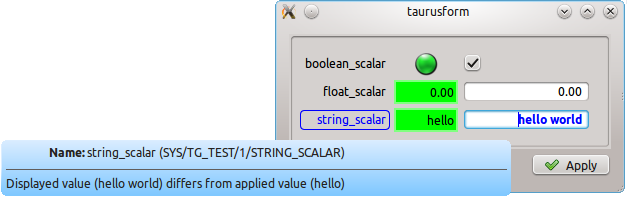
Example of a pending operation: the write value has been changed but has not yet been applied.
Apply or discard pending operations
Pending operations can be applied individually or for the whole form:
To apply the value for a single item, press Enter in the write widget. This is the behavior of the default Taurus write widgets.
To apply all pending operations in a form, use the form Apply button when it is available.
Use Reset to discard all pending operations when the form provides this button.
Force a write of the same value
If a write value has not changed, there is normally no pending operation and the value is therefore not written again. To force a write of the same value, press Ctrl+Enter in the write widget.
This can be useful, for example, when hardware needs an additional write of the same set point.
Handle external changes
When an attribute read value changes in the control system, its read widget is updated according to the control system event or refresh configuration.
If the write value is changed externally, for example by another client, Taurus notifies the item but does not overwrite the value currently displayed in your write widget. Instead, the item reports a pending operation. This prevents a concurrent edit from silently replacing your own input while still making you aware that the value changed elsewhere.
Tip
Check the write widget tooltip to inspect the cause of a pending operation.