Build a GUI with the TaurusGUI framework
TaurusGUI provides a guided way to create a Taurus graphical application
without writing code. This tutorial walks you through creating a basic
TaurusGui application and understanding the main pieces you can add to
it.
Create a new TaurusGUI application
Start the TaurusGUI creation wizard with:
taurus newgui
The wizard guides you through creating a TaurusGui-based application
in a few minutes.
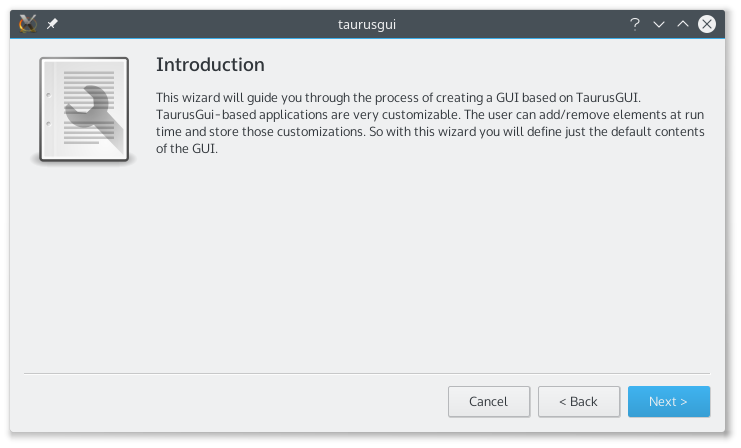
The TaurusGUI creation wizard.
Add panels to the GUI
A TaurusGUI application is populated with panels. A panel can contain a Taurus widget or any other Qt widget.
When adding Taurus widgets, associate them with the models that the panel should display. Many Taurus widgets also support drag and drop, so models can be moved between widgets while the application is running. For example, you can drag a model from a TaurusForm and drop it into a TaurusTrend widget to start plotting its evolution.
Run and refine the application
Once the application has been created, launch it and arrange the panels as needed. TaurusGUI lets you create additional panels, rearrange the layout, and store layouts as perspectives while the application is running.
For these day-to-day tasks, see Work with TaurusGUI applications.
For an explanation of the TaurusGUI application structure and the role of panels and perspectives, see The TaurusGUI framework.
Extend the application
The generated configuration is sufficient for many applications, but TaurusGUI also supports progressively more advanced customization:
edit the declarative Python and XML configuration files;
create specific widgets programmatically or with Qt Designer and add them as panels;
use the
taurus.qt.qtcore.communication.SharedDataManagerfor simple communication between panels;subclass or directly use
TaurusGuiwhen full programmatic control is required.
To create a custom widget with Qt Designer, continue with Build a Taurus widget with Qt Designer.
To create custom Taurus widgets programmatically, see Create custom Taurus widgets.
Run multiple instances when required
By default, TaurusGUI allows a single instance of an application to run at a time. This prevents multiple processes from overwriting persistent GUI settings.
If an application must support multiple simultaneous instances, edit its XML configuration and set:
SINGLE_INSTANCE=False