Work with TaurusGUI applications
This page describes common tasks available in TaurusGUI-based applications. For application-specific behavior, refer to the documentation of the application you are using. For the concepts and structure shared by TaurusGUI applications, see The TaurusGUI framework.
Launch TaurusGUI
Normally you launch a specific application built on top of TaurusGUI rather than TaurusGUI directly. Refer to that application’s instructions for the appropriate launch command.
To launch TaurusGUI directly, for example when debugging a configuration, use:
taurus gui [options]
To create a new TaurusGUI application from scratch, use:
taurus newgui
For a guided introduction to creating TaurusGUI applications, see Build a GUI with the TaurusGUI framework.
Rearrange panels
Note
The view can be locked to prevent accidental rearrangement of panels. Lock
or unlock it from the View menu.
Move a panel by dragging its title bar. When dropping it, you can place it next to other panels, drop it on top of an existing panel to tabify them, or leave it floating outside the main window.
Resize panels by dragging the boundaries between them. When the view is
unlocked, panel title bars also provide controls for switching between floating
and docked states and for hiding the panel. Hidden panels can be restored from
View -> Panels.
Some panels may be linked to a synoptic panel and shown automatically when a corresponding synoptic element is selected.
If you want to restore a previous layout, load a saved perspective.
Create custom panels
A TaurusGUI application usually provides predefined panels, but you can add custom panels while it is running.
Use the New Panel button in the main toolbar or select
Panels -> New Panel.... Choose a panel type and its options in the dialog.
The new panel appears floating and can then be docked in the main window.
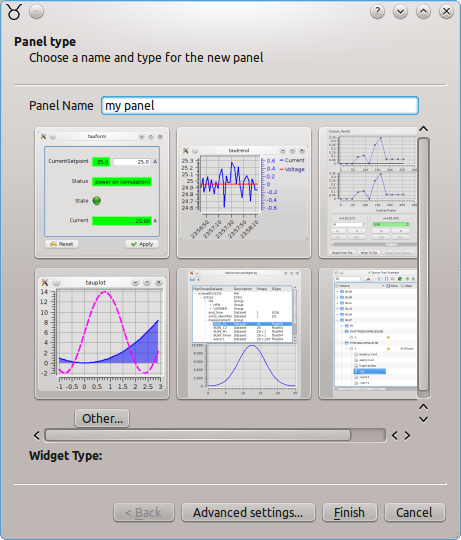
The New Panel dialog.
If the required widget is not included in the catalog, use other… and select the module and widget class manually.
A common workflow is to create an empty form panel and then populate it by dropping elements from existing forms, grouping controls that were originally spread across several panels.
When the application closes, or when a perspective is saved, TaurusGUI asks
which newly created panels should be kept for future sessions. The same dialog
is available from Panels -> Switch temporary/permanent status....
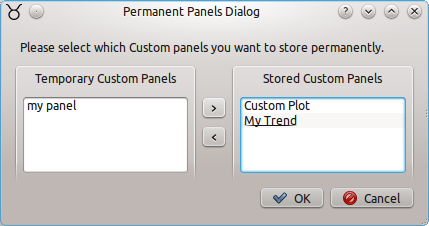
Selecting which custom panels should be stored permanently.
To remove a custom panel permanently, hide it and mark it as temporary using
Switch temporary/permanent status... so that it is not stored for future
sessions.
Save and load perspectives
All TaurusGUI-based applications provide access to perspectives through the
Perspectives toolbar or the View menu. If the toolbar is hidden, enable it
from View -> Toolbars.

The perspectives toolbar. The left button loads a perspective and the right button saves the current arrangement.
To switch layouts, use the Load perspective drop-down or
View -> Load perspective.
To store the current panel arrangement, use Save perspective or
View -> Save perspective.
To back up perspectives or move them to another computer or user account, use
File -> Export Settings.... Restore them with
File -> Import Settings....
Add a synoptic panel
To add a synoptic panel to an existing TaurusGUI application:
Use Add Panel or the corresponding menu entry.
Select
TaurusJDrawSynopticsView.Open Advanced settings….
Enter the full path to the JDraw file in the Model field.
The application toolbar may also provide a button for showing or hiding each synoptic panel.
For an explanation of synoptics and how they are used in TaurusGUI, see Synoptics.
Add external application launchers
Use Tools -> External Applications to add or remove launchers for external
programs.
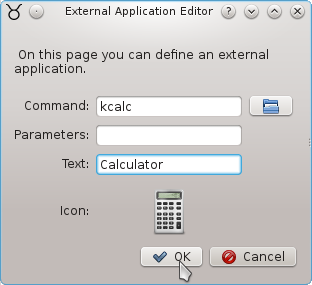
The external application editor allows a command, text, and icon to be associated with a launcher.
When closing the application or saving a perspective, TaurusGUI asks which custom launchers should be retained for future sessions.
External application launchers can also be used to launch small scripts that automate tasks related to the purpose of the GUI.
Configure Sardana integration
Many TaurusGUI applications used with Sardana provide macro-related panels, including:
Macros, a macro executor;Sequences, a macro sequencer;MacroDescriptionfor documentation of the selected macro;DoorOutputfor macro output;DoorDebugfor macro debug messages;DoorResultfor macro return values;Experiment Configfor acquisition and display configuration;Sardana Editorfor creating or modifying Sardana macros.
Some temporary panels may also be created according to the experiment
configuration. For example, 1D Scans may show scalar scan values in a
trend.
Run the following command to see an example application containing these panels:
taurus gui macrogui
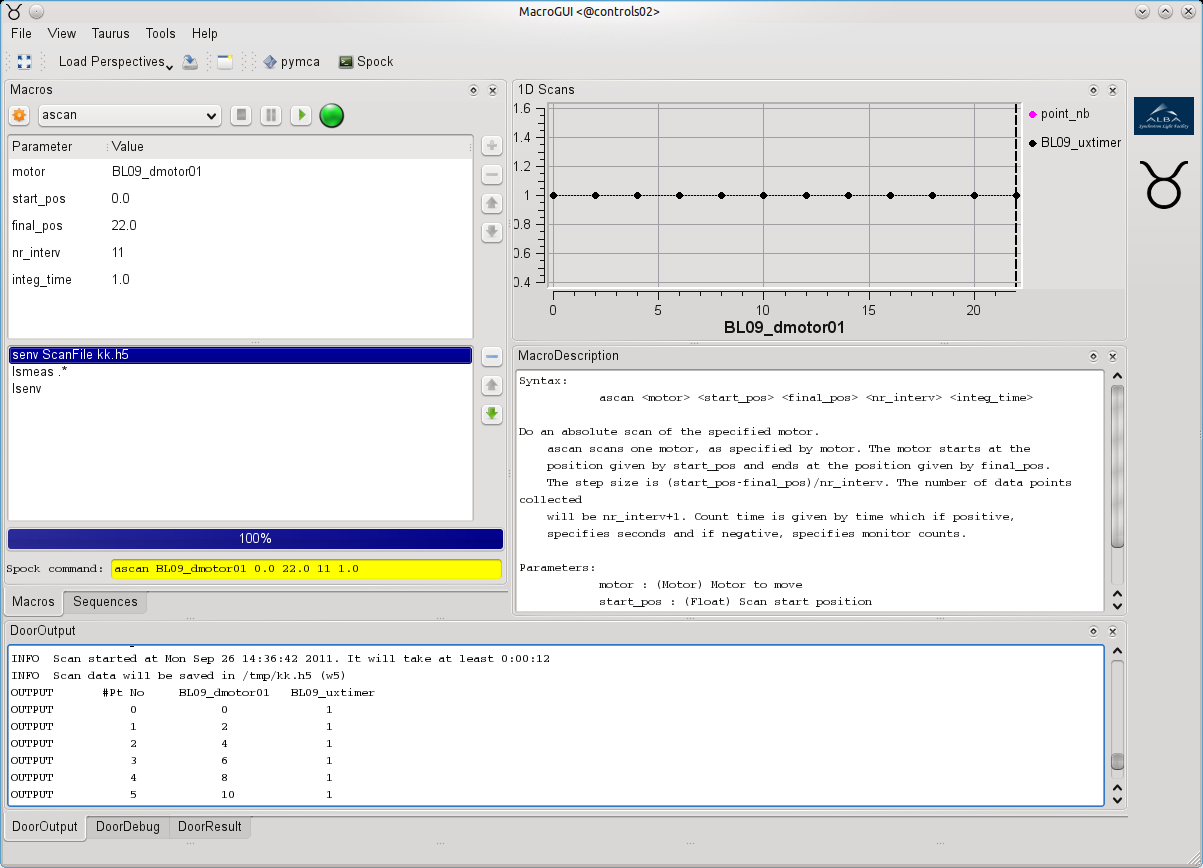
Macro-related panels from the macrogui example.
In most applications the MacroServer and Door are predefined. To select a
different configuration, use Taurus -> Macro execution configuration....
Troubleshooting floating panels
If a panel cannot be dropped and remains floating, there may not be enough room for its width or height in any available docking area. Try hiding another panel, tabifying panels together, or increasing the size of the main window.